Authentication
To make requests to the Circa API, you'll need to include your API key in every request using the x-api-key header.
x-api-key: circa_live_6JeiZORoVyRPqYBuc3ft7kIWjlA7w25hKey format
Keys are prefixed with either circa_live_ or circa_test_ followed by 32 random characters, e.g. circa_live_6JeiZORoVyRPqYBuc3ft7kIWjlA7w25h.
Live vs. test keys
When you create a key in the Developer portal, you'll choose one of two types:
- Live (
circa_live_…) — for production traffic. Circa stores only a SHA-256 hash and the first 18 characters (the "prefix"); the full value is returned exactly once at creation. Keep these in a secret manager. - Test (
circa_test_…) — for development. The plain key remains revealable on the API keys page so you can re-copy it any time. Same usage as live keys but billed against a separate sandbox quota.
Revocation
Revoking a key in the portal takes effect immediately. The next request with that key returns 401 Unauthorized. Revoked keys are soft-deleted so their historical logs remain visible.
Errors
A 401 is returned when the key is missing, malformed, unknown, or revoked.
{
  "statusCode": 401,
  "message": "Invalid API key"
}
Team scope: x-team-id (required)
Every request must also include an x-team-id header naming which team to operate against. Your API key is tied to the user who created it, so the team ID you pass must be one that user is an active member of.
x-api-key: circa_live_6JeiZORoVyRPqYBuc3ft7kIWjlA7w25h
x-team-id: 4b6f9c28-6f4e-4e7f-a36d-2ff989045d10
Where to find your team id
In app.circa.ai, open the team selector in the top-right navbar. Each row has a settings icon — click the one next to the team you want the id for:
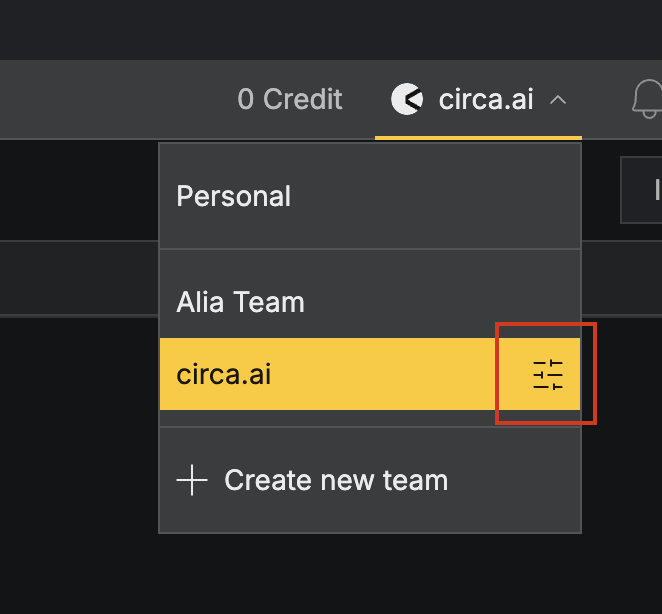
That opens Team Settings → General, where you'll find the team id with a one-click copy button:
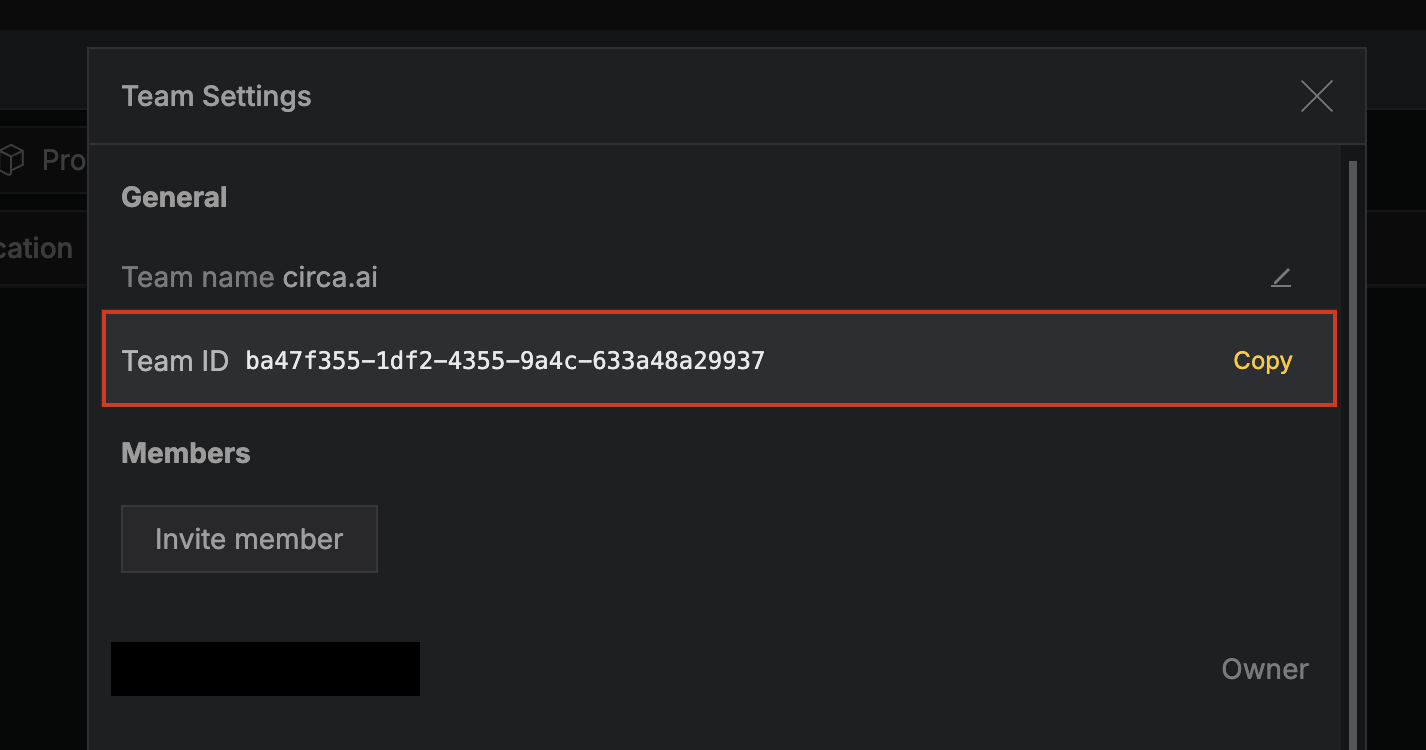
If you're a member of multiple teams, switch between them in the same dropdown to grab each id, or call GET /public/teams to enumerate them programmatically (the response includes which one is your most recent).
Omitting the header returns 400 Bad Request. Passing a team the owner is not a member of returns 403 Forbidden.
{
  "statusCode": 400,
  "message": "Missing required 'x-team-id' header. Pass the id of a team the API key owner belongs to."
}{
"statusCode": 403,
"message": "The API key owner is not a member of team '...'."
}Best practices
- Store keys in a secret manager (AWS Secrets Manager, Doppler, Vercel env vars). Never commit them to source control.
- Create one key per environment (production, staging, CI) so you can revoke them independently.
- Rotate keys periodically. Revoke unused keys.
- Treat keys like passwords — a leaked key gives full access to your data and can debit your credit balance via
/materials/:id/properties/pull,/processes/:id/pull, or/processes/:id/impacts/pull.